
Queen's Domain on Steam Deck
Check which Steam app is Verified and use early retail tests to choose a starting frame cap on OLED or LCD.
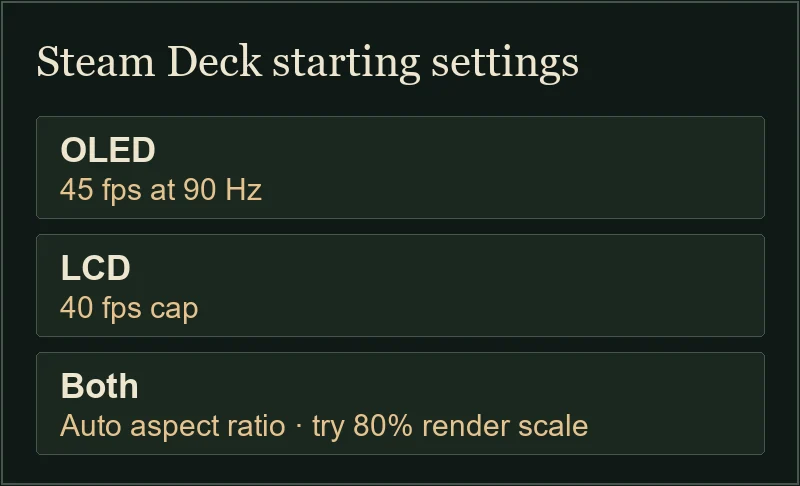
Steam marks the full Queen's Domain, app 1799840, as Deck Verified. For handheld play, an early retail test suggests starting at 45 fps on OLED or 40 fps on LCD. Those are settings to try in your current area. The badge describes compatibility, and the test covered the opening hours.
Updated
Sources checked
On this page
Check the full game and demo separately
Open the full-game Steam listing to see the compatibility badge. Steam gives the free demo its own listing and app ID, 4081520. The Verified status shown for app 1799840 covers the full game.
If you're moving from the trial to retail, read the demo save guide before you plan around an existing save.
Starting settings for each Steam Deck
Scroll sideways for more columns. Use the arrow keys when the table is focused.
| Model | Frame cap | In-game settings to try |
|---|---|---|
| Steam Deck OLED | 45 fps at 90 Hz | Auto aspect ratio. Try 80% render scale if more headroom is needed. |
| Steam Deck LCD | 40 fps | Auto aspect ratio. Try 80% render scale if more headroom is needed. |
Tune in the area you're playing
Set Aspect Ratio to Auto to use the Deck's 16:10 screen. Try the cap in an open area or a busy fight before you settle on the resolution scale. RPG Site saw uncapped drops into the mid-to-high 50s in its opening sample.
SteamDeckHQ also tried 50 fps at 50 Hz and reported around 13 W in the opening areas. Treat that as a test result from one setup. Docked resolution, later areas, power limits and Proton or game updates can affect your results. See Switch 2 performance if you're choosing between handheld editions.